How to Set Up AWS Security Hub for Compliance Monitoring
Quick summary: AWS Security Hub aggregates security findings from 200+ sources (GuardDuty, Config, IAM Access Analyzer, Inspector). This guide covers setup, compliance standards (PCI-DSS, CIS, NIST), automated remediation, and building a compliance dashboard without hiring a SOC team.
Key Takeaways
- AWS Security Hub aggregates security findings from 200+ sources (GuardDuty, Config, IAM Access Analyzer, Inspector)
- AWS Security Hub aggregates security findings from 200+ sources and tracks compliance against standards like PCI-DSS, CIS, NIST, HIPAA, and SOC 2
- Instead of checking 10 different AWS services for security issues, Security Hub gives you a single compliance dashboard
- Building Compliance Infrastructure on AWS
- Step 1: Enable Security Hub 1
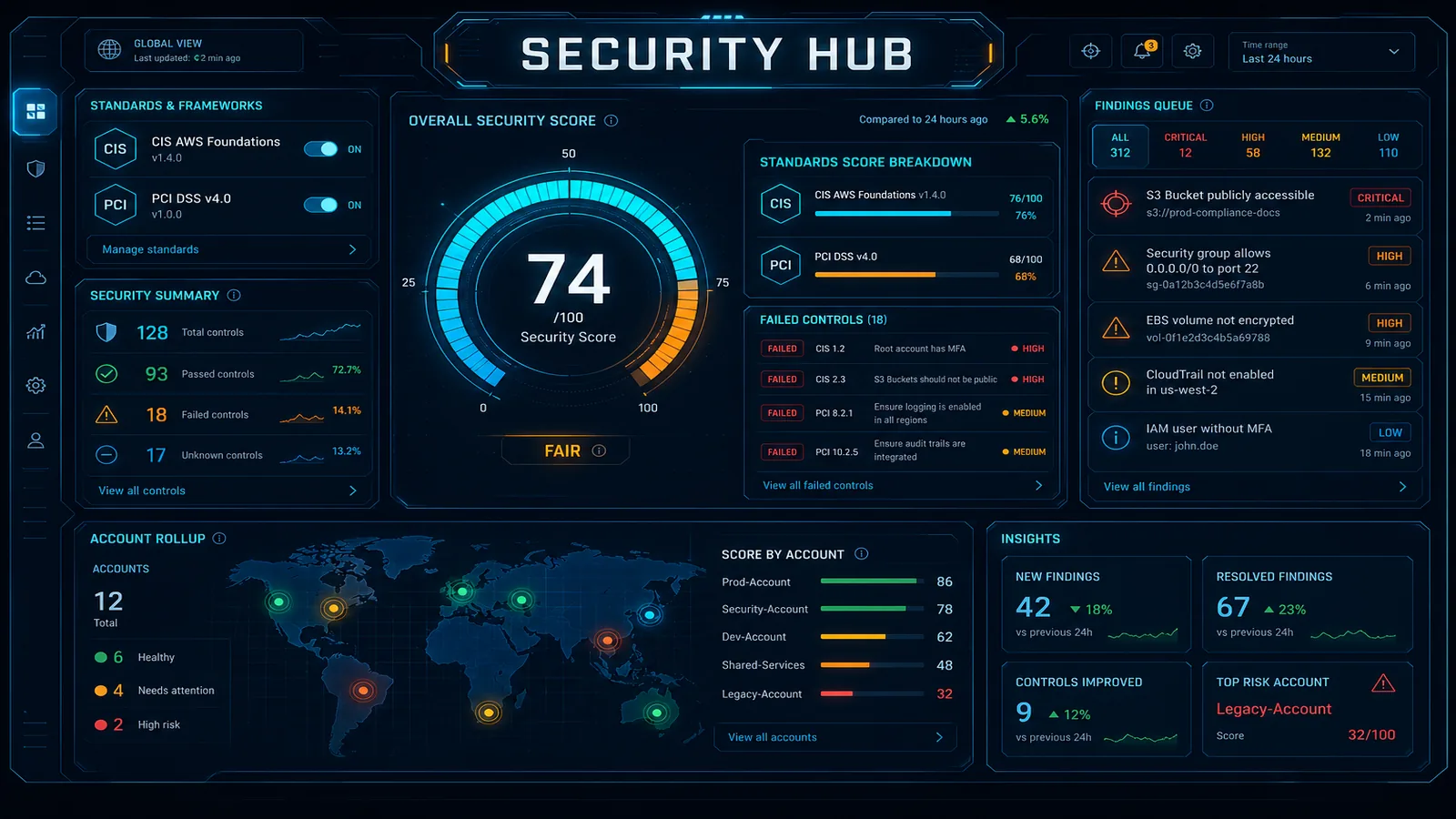
Table of Contents
AWS Security Hub aggregates security findings from 200+ sources and tracks compliance against standards like PCI-DSS, CIS, NIST, HIPAA, and SOC 2. Instead of checking 10 different AWS services for security issues, Security Hub gives you a single compliance dashboard. As of June 2026, Security Hub Essentials consolidates posture management (CSPM), Amazon Inspector vulnerability scans, and risk analytics on a per-resource-unit model — see the CSPM native vs third-party decision guide for pricing math.
This guide covers setting up Security Hub, enabling compliance standards, automating remediation, and monitoring compliance metrics without hiring a SOC team.
Compliance vs incident routing: Security Hub control failures are configuration drift — route them to a hardening backlog or continuous compliance auto-remediation, not the pager. Active threats (GuardDuty attack sequences, credential compromise) belong on incident response runbooks. Mixing the two streams is how alert fatigue buries real incidents.
Building Compliance Infrastructure on AWS? FactualMinds helps organizations implement Security Hub, compliance automation, and continuous monitoring. See our compliance services or talk to our team.
Step 1: Enable Security Hub
- Go to AWS Security Hub → Get started (if first time) or Dashboard (if returning)
- Click Enable Security Hub
- Region selection: Security Hub is region-specific; enable in all regions you use
- Default standards: AWS enables CIS AWS Foundations Benchmark by default
- Click Enable Security Hub
Security Hub will take 5-10 minutes to initialize and scan your account.
Step 2: Enable Compliance Standards
Security Hub can monitor against 5 compliance frameworks. Enable all that apply to your business:
Step 2a: PCI-DSS v3.2.1 (Payment Card Security)
- Go to Security Standards → PCI-DSS v3.2.1
- Click Enable standard
- PCI-DSS will check:
- All S3 buckets encrypted (TLS for data in transit)
- CloudTrail logging enabled
- VPC Flow Logs enabled
- IAM access not using root account
- Password policies enforced (14+ characters, complexity)
Step 2b: NIST Cybersecurity Framework (800-53)
- Go to Security Standards → NIST Cybersecurity Framework
- Click Enable standard
- NIST checks AWS implementation of NIST 800-53 controls:
- Identify (asset inventory, risk assessment)
- Protect (access control, encryption)
- Detect (logging, monitoring)
- Respond (incident response)
- Recover (backup, disaster recovery)
Step 2c: HIPAA (Healthcare)
- Go to Security Standards → HIPAA
- Click Enable standard
- HIPAA checks:
- Encryption at rest (S3, RDS, DynamoDB)
- VPC Flow Logs enabled (for audit trail)
- API logging (CloudTrail)
- Account isolation (separate AWS accounts per environment)
Enable all applicable standards. Cost is $3/month per standard, so 5 standards = $15/month.
Step 3: Aggregate Findings from Multiple Sources
Security Hub imports findings from these services:
Automatic sources (no setup required):
- GuardDuty: Detects malware, crypto mining, unauthorized AWS API access
- Config: Flags non-compliant resource configurations
- IAM Access Analyzer: Finds overly permissive IAM policies
- Inspector: Detects OS-level vulnerabilities (unpatched EC2 instances)
- Macie: Discovers sensitive data in S3 (PII, credit cards)
Optional sources (requires setup):
- Firewall Manager: DDoS protection findings
- Health Dashboard: AWS service disruptions
- Third-party integrations: Slack, Splunk, Sumo Logic
Enable all in Security Hub Settings → Integrations:
# Enable GuardDuty (required for Security Hub)
aws guardduty create-detector --finding-publishing-frequency FIFTEEN_MINUTES --region us-east-1

# Verify Security Hub imported findings from GuardDuty
aws securityhub describe-findings --filters '{"Type": [{"Value": "GuardDuty", "Comparison": "PREFIX"}]}' --region us-east-1
Step 4: Create Custom Insights (Compliance Dashboard)
Security Hub comes with default insights (findings by severity, by resource type). Create custom insights to track compliance:
Insight 1: High-Severity Findings
- Go to Insights → Create insight
- Name:
high-severity-findings - Filters:
- Severity:
HIGHorCRITICAL - Record State:
ACTIVE
- Severity:
- Result grouping:
Resource Type - Click Create insight
This shows which resource types have the most critical security issues.
Insight 2: Non-Compliant Resources (PCI-DSS)
- Create insight:
- Name:
pci-dss-non-compliant - Filters:
- Compliance State:
FAILED - Standard:
PCI-DSS
- Compliance State:
- Result grouping:
Compliance Standard - Click Create insight
Insight 3: Unresolved Findings (30+ days old)
- Name:
stale-findings - Filters:
- Record State:
ACTIVE - Workflow Status:
NEW - First Observed: More than 30 days ago
- Record State:
- Click Create insight
This identifies findings you’ve been ignoring.
Step 5: Suppress Known False Positives
Security Hub will flag things that are intentional (e.g., S3 bucket allows public read for a static website). Suppress these to reduce noise:
- Go to Findings
- Find the false positive finding
- Click finding to open details
- Click Suppress finding
- Reason: “Not Applicable”
- Click Suppress
The finding will no longer appear in dashboards.
Step 6: Automate Remediation with EventBridge
Create an EventBridge rule to auto-remediate specific findings:
Pattern 1: Auto-Disable Unused EC2 Instances
When Security Hub finds an EC2 instance with low CPU usage for 30+ days, disable it:
# Create EventBridge rule
aws events put-rule \
  --name security-hub-disable-unused-ec2 \
  --event-pattern '{
    "source": ["aws.securityhub"],
    "detail-type": ["Security Hub Findings - Imported"],
    "detail": {
      "findings": {
        "Type": ["Software and Configuration Checks/AWS Security Best Practices"],
        "Title": ["Unused EC2 instances should be removed"]
      }
    }
  }' \
  --state ENABLED

# Target Lambda function for remediation
aws events put-targets \
  --rule security-hub-disable-unused-ec2 \
  --targets "Id"="1","Arn"="arn:aws:lambda:us-east-1:123456789012:function:disable-unused-ec2"
Lambda function to handle remediation:
# disable-unused-ec2.py
import boto3
import json

securityhub = boto3.client('securityhub')
ec2 = boto3.client('ec2')

def lambda_handler(event, context):
    # Parse finding from EventBridge
    finding = event['detail']['findings'][0]
    resource_id = finding['Resources'][0]['Id'].split('/')[-1]

    # Stop the instance
    print(f"Stopping instance {resource_id}...")
    ec2.stop_instances(InstanceIds=[resource_id])

    # Update finding in Security Hub
    securityhub.update_findings(
        FindingIdentifiers=[{'Id': finding['Id'], 'ProductArn': finding['ProductArn']}],
        Note={'Text': 'Instance stopped automatically', 'UpdatedBy': 'Lambda remediation'},
        Workflow={'Status': 'RESOLVED'}
    )

    return {'statusCode': 200, 'message': f'Stopped {resource_id}'}
Pattern 2: Auto-Revoke Overly Permissive IAM Policies
When IAM Access Analyzer finds a policy that allows public access, revoke it:
# remediate-iam-policy.py
import boto3

securityhub = boto3.client('securityhub')
iam = boto3.client('iam')

def lambda_handler(event, context):
    finding = event['detail']['findings'][0]
    role_name = finding['Resources'][0]['Id'].split('/')[-1]

    # Get all policies attached to role
    policies = iam.list_attached_role_policies(RoleName=role_name)

    for policy in policies['AttachedPolicies']:
        # Detach overly permissive policy
        print(f"Detaching {policy['PolicyName']} from {role_name}...")
        iam.detach_role_policy(
            RoleName=role_name,
            PolicyArn=f"arn:aws:iam::123456789012:policy/{policy['PolicyName']}"
        )

    # Update finding
    securityhub.update_findings(
        FindingIdentifiers=[{'Id': finding['Id'], 'ProductArn': finding['ProductArn']}],
        Workflow={'Status': 'RESOLVED'}
    )

    # Send SNS alert
    sns = boto3.client('sns')
    sns.publish(
        TopicArn='arn:aws:sns:us-east-1:123456789012:security-alerts',
        Subject=f'IAM Policy Revoked: {role_name}',
        Message=f'Detached overly permissive policies from {role_name}'
    )

    return {'statusCode': 200}
Step 7: Set Up Compliance Dashboards
Use CloudWatch to build a compliance dashboard:
import boto3

cloudwatch = boto3.client('cloudwatch')

cloudwatch.put_metric_alarm(
    AlarmName='SecurityHub-Critical-Findings',
    MetricName='CriticalFindings',
    Namespace='AWS/SecurityHub',
    Statistic='Sum',
    Period=3600,
    Threshold=1,
    ComparisonOperator='GreaterThanOrEqualToThreshold',
    AlarmActions=['arn:aws:sns:us-east-1:123456789012:security-alerts'],
    EvaluationPeriods=1
)

cloudwatch.put_metric_alarm(
    AlarmName='SecurityHub-Compliance-Score-Low',
    MetricName='ComplianceScore',
    Namespace='AWS/SecurityHub',
    Statistic='Average',
    Period=3600,
    Threshold=80,
    ComparisonOperator='LessThanThreshold',
    AlarmActions=['arn:aws:sns:us-east-1:123456789012:ops-alerts']
)
Step 8: Create Multi-Account Compliance View
For organizations with multiple AWS accounts, use Security Hub delegated admin:
- In Management account, go to Security Hub → Organization
- Click Register delegated administrator
- Select an account to be the delegated admin
- In delegated admin account, go to Security Hub → Add member accounts
- Select accounts to monitor
- Delegated admin now sees findings from all member accounts in one dashboard
This allows central compliance monitoring without duplicating findings.
Step 9: Suppress Findings by Severity or Type
To reduce alert fatigue, suppress informational findings:
# Suppress all INFORMATIONAL findings
aws securityhub update-findings \
  --finding-identifiers '[{"Id": "finding-id", "ProductArn": "arn:aws:securityhub:region:account:product/..."}]' \
  --note '{"Text": "Informational only", "UpdatedBy": "Automated"}' \
  --workflow '{"Status": "SUPPRESSED"}'
Step 10: Production Checklist
- Security Hub enabled in all regions
- CIS, PCI-DSS, NIST standards enabled
- GuardDuty, Config, IAM Access Analyzer integrated
- Custom insights created (high-severity, non-compliant, stale)
- False positives suppressed
- EventBridge rules configured for auto-remediation
- Lambda remediation functions deployed
- CloudWatch alarms set for Critical findings
- Multi-account view configured (if applicable)
- Compliance dashboard created (CloudWatch or custom)
- Team trained on incident response
Common Mistakes
-
Not suppressing false positives
- Finding appears every day, team ignores it
- Suppressed findings still count toward compliance score
- Better: Fix the underlying issue (e.g., enable S3 logging) or suppress with reason
-
Enabling all standards immediately
- 5 standards = 500+ controls to pass
- Initial compliance score likely 10-20%
- Better: Start with CIS + PCI-DSS (most common), add others later
-
Not configuring AWS Config properly
- Security Hub depends on Config for compliance checks
- Config disabled = Security Hub can’t see configuration violations
- Always enable Config in all regions before Security Hub
-
Automating remediation without approval workflow
- EventBridge rule deletes IAM role → production breaks
- Better: EventBridge → SNS → manual approval → Lambda remediation
- Or restrict automation to non-production accounts only
-
Ignoring findings for months
- Security Hub tracks finding age; old findings = lower compliance score
- Better: Set SLA (30 days to resolve critical, 90 days for medium)
Cost Estimation
For typical organization with 50 EC2 instances, 20 RDS databases, 100 IAM roles:
| Component | Cost |
|---|---|
| Security Hub base | $0.10 per finding ingested |
| PCI-DSS, CIS, NIST (3 standards) | $3/month each = $9 |
| GuardDuty | $0.30 per 1M API calls |
| Config | $2/month + $0.003 per config item recorded |
| Total monthly | ~$200–$500 depending on finding volume |
Next Steps
- Enable Security Hub in primary region (15 mins)
- Enable 2-3 compliance standards (5 mins)
- Integrate GuardDuty and Config (10 mins)
- Create 3 custom insights (15 mins)
- Suppress 5-10 false positives (20 mins)
- Create 1 EventBridge auto-remediation rule (30 mins)
- Set up CloudWatch compliance alarms (15 mins)
- Build compliance dashboard (45 mins)
Security Hub is the detection layer — to close the loop into a full pipeline (org-wide rule deployment, safe auto-remediation, and audit-ready evidence), see continuous compliance automation with Config conformance packs (Audit Manager only if you onboarded before it closed to new customers on 30 April 2026).
- Talk to FactualMinds if you need help with compliance automation or multi-account governance
Related reading
AWS Cloud Architect & AI Expert
AWS-certified cloud architect and AI expert with deep expertise in cloud migrations, cost optimization, and generative AI on AWS.